Challenge Description
Some people write their passwords down, others use password managers, but me? I draw them. It’s a foolproof method… until I forget what I drew. Luckily, my computer never truly forgets.
File: Sketchy.7z
Flag format: Securinets{flag_here}
Author: PetriQore
Solution
Requirements: Volatility and GIMP
Step 1. Extract the File
First, extract the contents of the Sketchy.7z archive using 7-Zip.
Run the following command:
7z x Sketchy.7zThis will extract the Windows.vmem file.
Step 2. Analyze the Memory Dump
The file Windows.vmem is a memory dump, and we need to analyze it to identify any processes related to drawing or images. Based on the challenge description, we know that the flag is somehow related to a “drawing.”
We’ll use Volatility to analyze the memory dump and look for drawing processes, starting with a basic listing of running processes.
Run the following command to view the process list:
volatility -f Windows.vmem --profile=WinXPSP3x86 pslist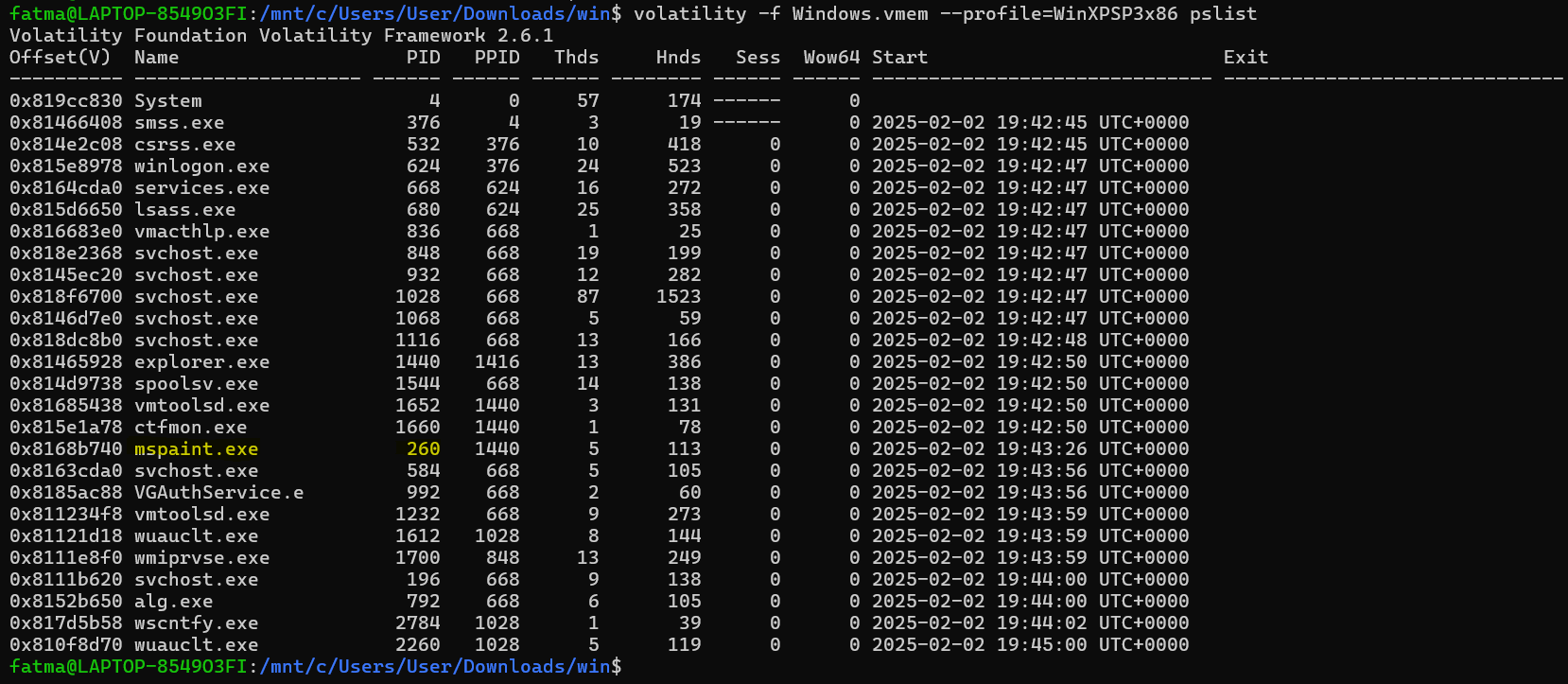
We find that mspaint.exe (Microsoft Paint) is running, and its PID is 260. Since mspaint is a program that deals with drawing, it is highly likely that the flag will be related to this process.
Step 3. Dump the Memory of mspaint.exe
To get a memory dump of mspaint, we use the memdump plugin in Volatility. This will allow us to extract the raw memory of the mspaint process, which we can then analyze for any hidden information.
Run the following command to dump the memory of the mspaint process:
volatility -f Windows.vmem --profile=WinXPSP3x86 memdump -p 260 -D .This command will create a dump of the mspaint process’s memory and save it as 260.dmp in the current directory.
Step 4. Convert the Memory Dump to a data File
We now have the raw memory dump of mspaint.exe in the file 260.dmp. To analyze this memory, we need to convert it into data file.
mv 260.dmp 260.dataStep 5. Open the File in GIMP
We open the 260.data file with GIMP (or any image editor that can handle raw data files). However, upon opening it, we notice some distortion or unexpected results.
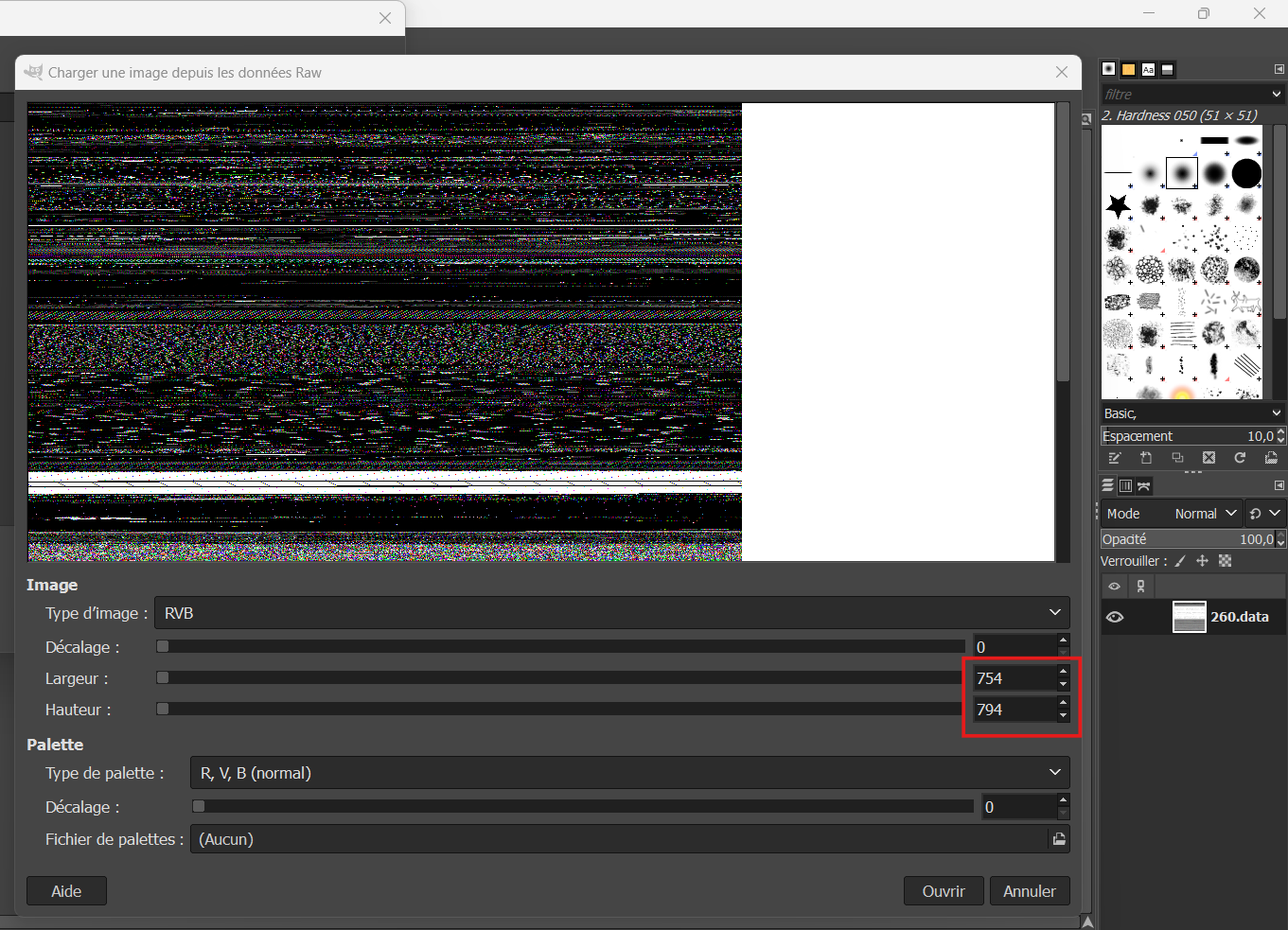
This is normal as the data was not originally intended to be an image, but we can still work with it.
In GIMP, we begin adjusting the height and width of the image file. We keep modifying these values until something starts to appear on the screen. We adjust until a clear pattern starts to emerge. (Around Height=1784 and Width=1920)
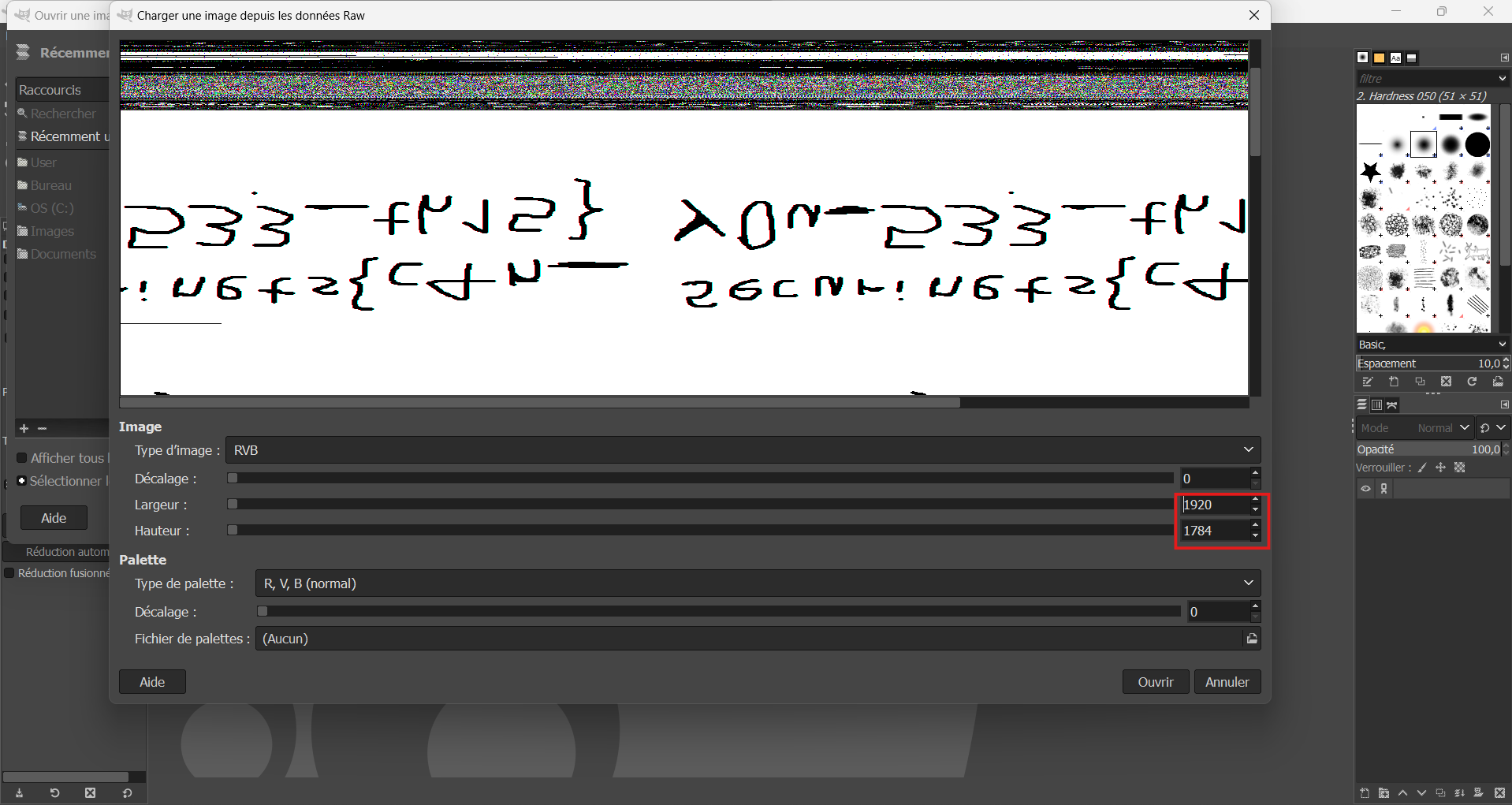
We click on Open.
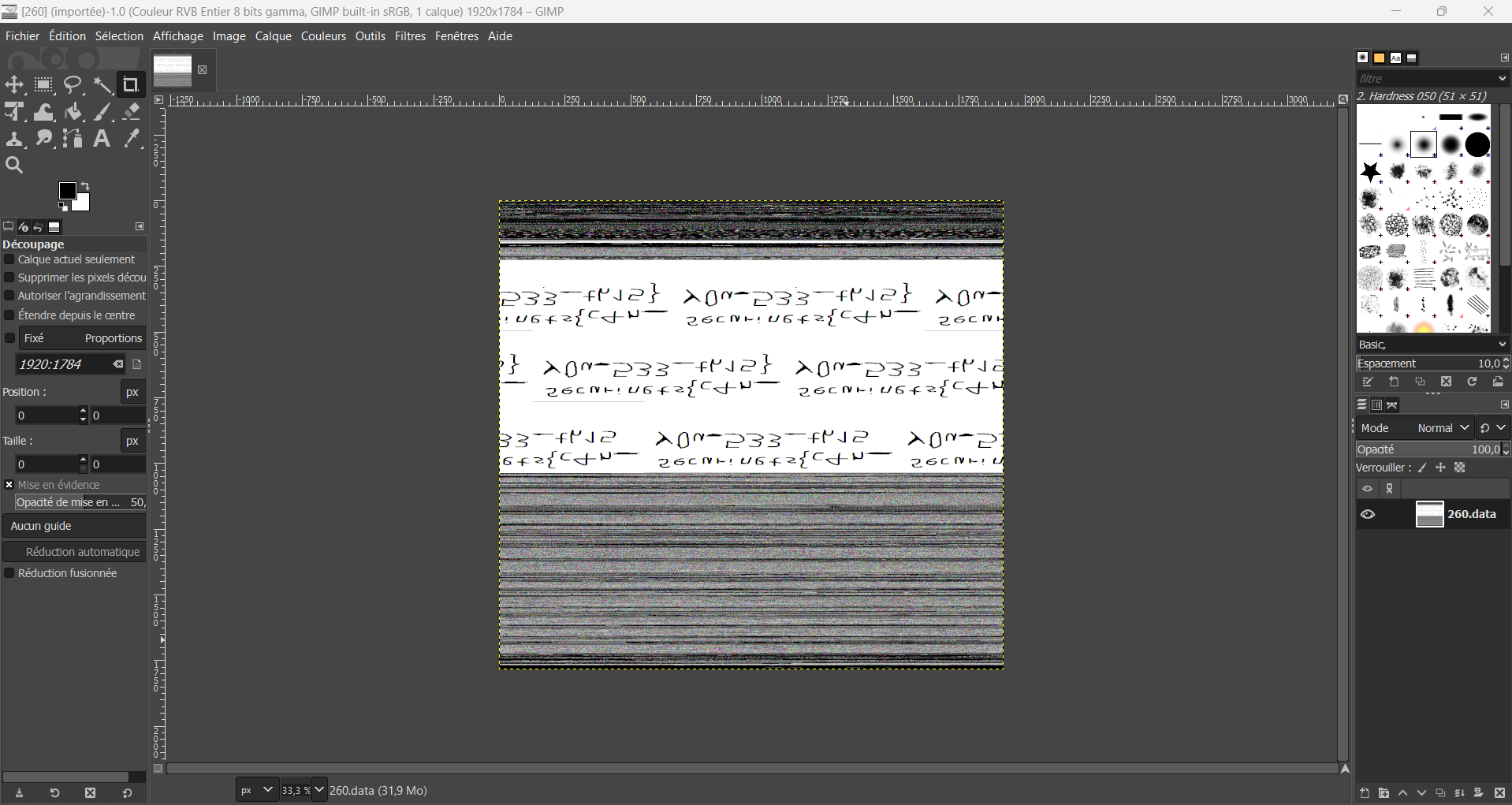
Step 6. Flip, Rotate, and Refine the Image
To reveal the flag, we try flipping and rotating the image in GIMP.
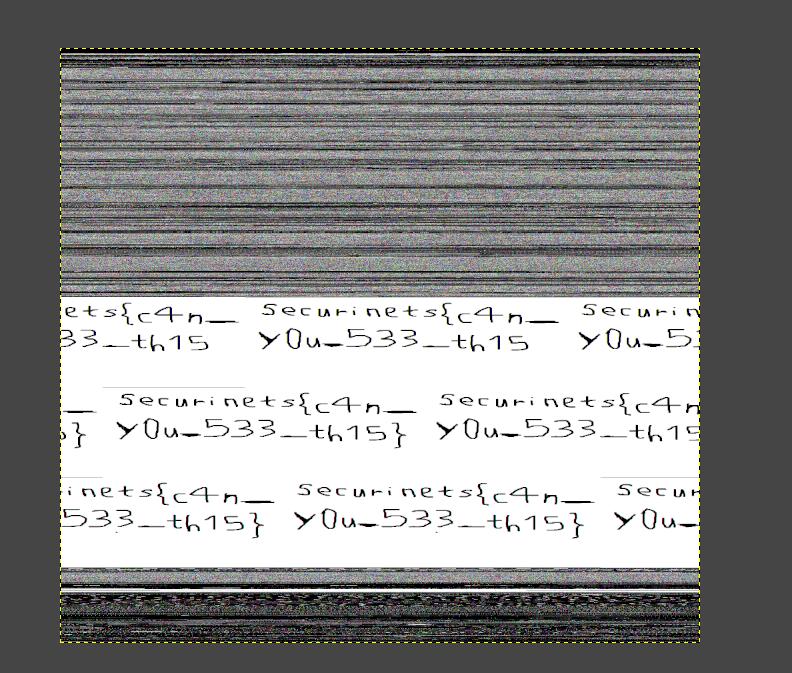
Step 7. Reveal the Flag
After performing the necessary adjustments, we finally see the flag in the image:
Securinets{c4n_y0u_533_th15}